RIMA: Difference between revisions
Jump to navigation
Jump to search
No edit summary |
(→System) |
||
| Line 8: | Line 8: | ||
== Settings == | == Settings == | ||
=== Admin === | === Admin Password === | ||
RIMA supports only one administrator account for simple and operation ownership and responsibility. | RIMA supports only one administrator account for simple and operation ownership and responsibility. | ||
Factory default Admin's ID and password are "Admin" and "Admin". we recommend to change more secure password in production operation. | Factory default Admin's ID and password are "Admin" and "Admin". we recommend to change more secure password in production operation. | ||
| Line 25: | Line 26: | ||
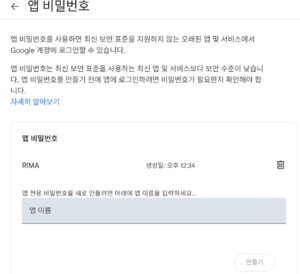
[[File:RIMA-gmail-app-passowrd.png|center|frameless]] | [[File:RIMA-gmail-app-passowrd.png|center|frameless]] | ||
=== Notification Mail === | |||
=== System IP === | |||
=== Device === | === Device === | ||
Revision as of 09:04, 20 August 2025
RIMA
RIMA (Rack Information Management Analyzer) is an appliance (Hardware plus Software) product by HPCMATE. RIMA provides real-time data visualization for multiple RIM (DS7) devices and analyze features.
Dashboard
System
Settings
Admin Password
RIMA supports only one administrator account for simple and operation ownership and responsibility.
Factory default Admin's ID and password are "Admin" and "Admin". we recommend to change more secure password in production operation.
Setting for send mail,
RIMA support gmail app password to send notification from RIMA to registered email list. To do that Admin needs to make Gmail's App Password. Following is an overview how to create App password and register
- Log in to your Google account or use this link https://security.google.com/settings/security/apppasswords
- Go to My Account > Sign-in & Security > App Passwords
- Put App name whatever you want then create app password
- Copy the password then put it as sendmail password along with your gmail account
- Test send mail and verify mail receiving from the RIMA
